M3U8 Download: Save the Full Video or Download Only a Selected Segment
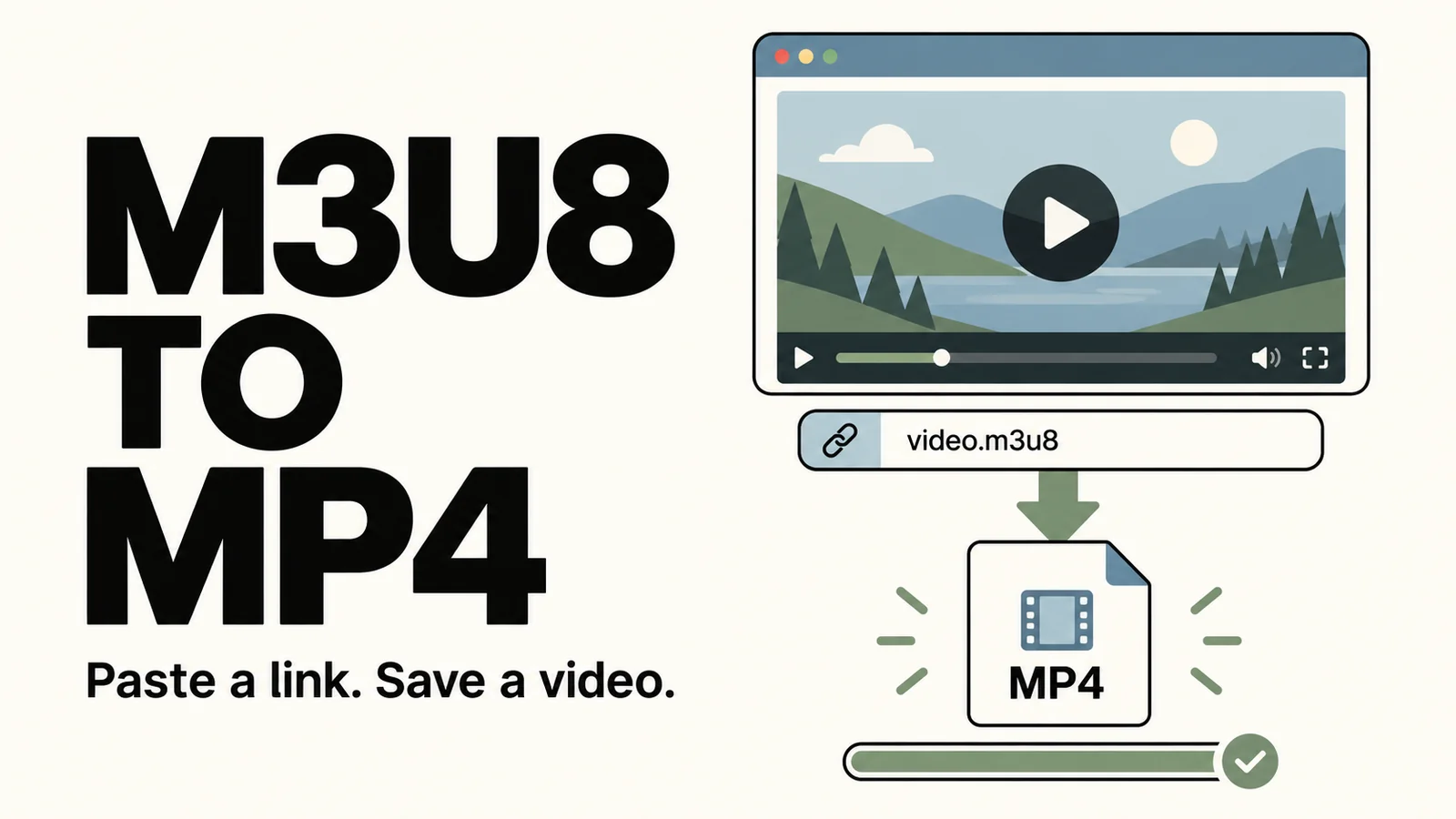
If you already have an M3U8 video link, you can use M3U8 Download to save the content. You can also choose a specific time range, which is useful when you only want to keep part of a video.
This feature requires a direct M3U8 video link. For regular webpage or share links, use URL Mode or Browser Mode first to obtain the media link.
Download the Full Video
Open M3U8 Download, paste the link, and click Parse.
If an Available Bitrates list appears, select the version you want and click Use This Bitrate. You can think of these as different versions or quality levels of the video.
Enter a recognizable name in the File Name field.
To save the video as a standard MP4 file, enable Merge to MP4. If you're unsure about the other options, leave them at their default settings.
Click Download, then go to the Downloads page to check the progress.
Download Only Part of the Video
After parsing is complete, find Time Trim.
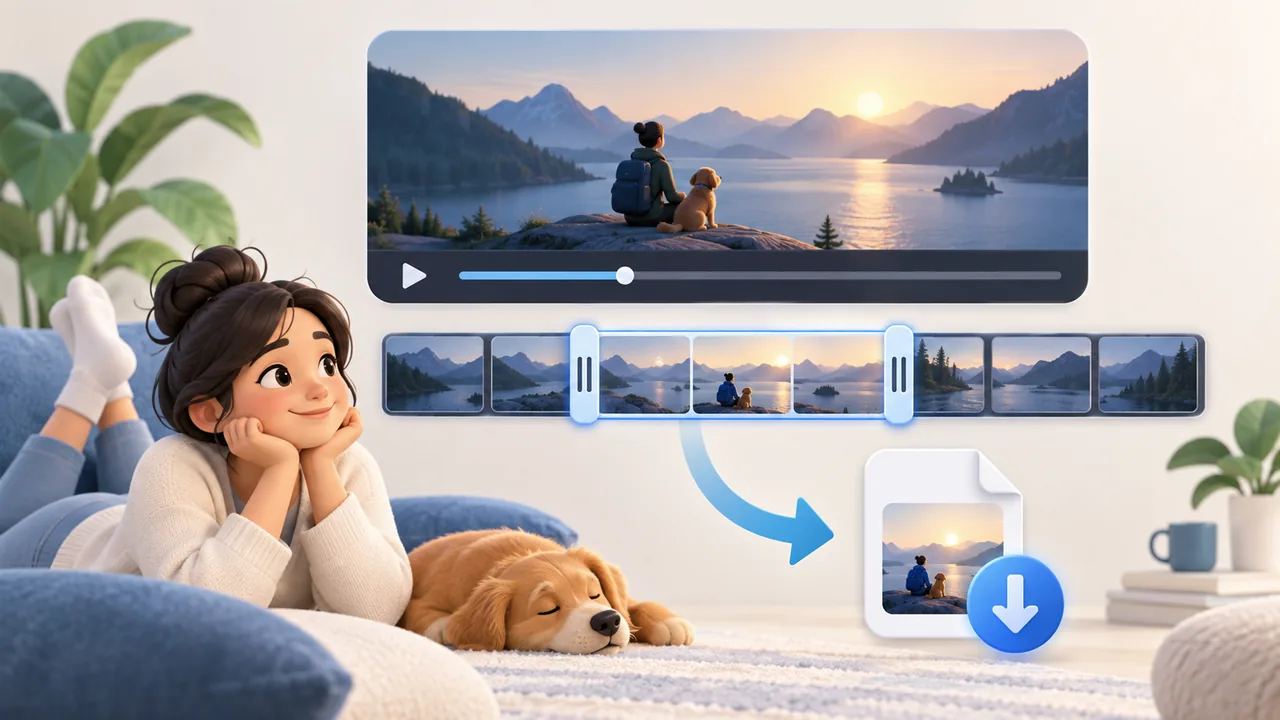
You can drag the sliders on both sides or enter a Start Time and End Time, then click Apply Time Range.
For example, if you only want to save the section from 2 minutes to 5 minutes, enter 02:00 and 05:00, apply the time range, and then start the download.
The beginning or end of the downloaded video may be slightly earlier or later than the exact times you entered.
Live Streams and Expired Links
If the page shows Live Stream Detected, the button will change to Start Live Recording. Click it to begin recording. You can check the recording task on the Downloads page.
If the content cannot be loaded, first make sure the link is complete. Some M3U8 links expire after a period of time. If that happens, return to the original webpage, get a new link, and try again.
Comments 0
Comments are disabled for this article.
Loading comments…