URL Mode: Copy a Link, Select Content, and Download
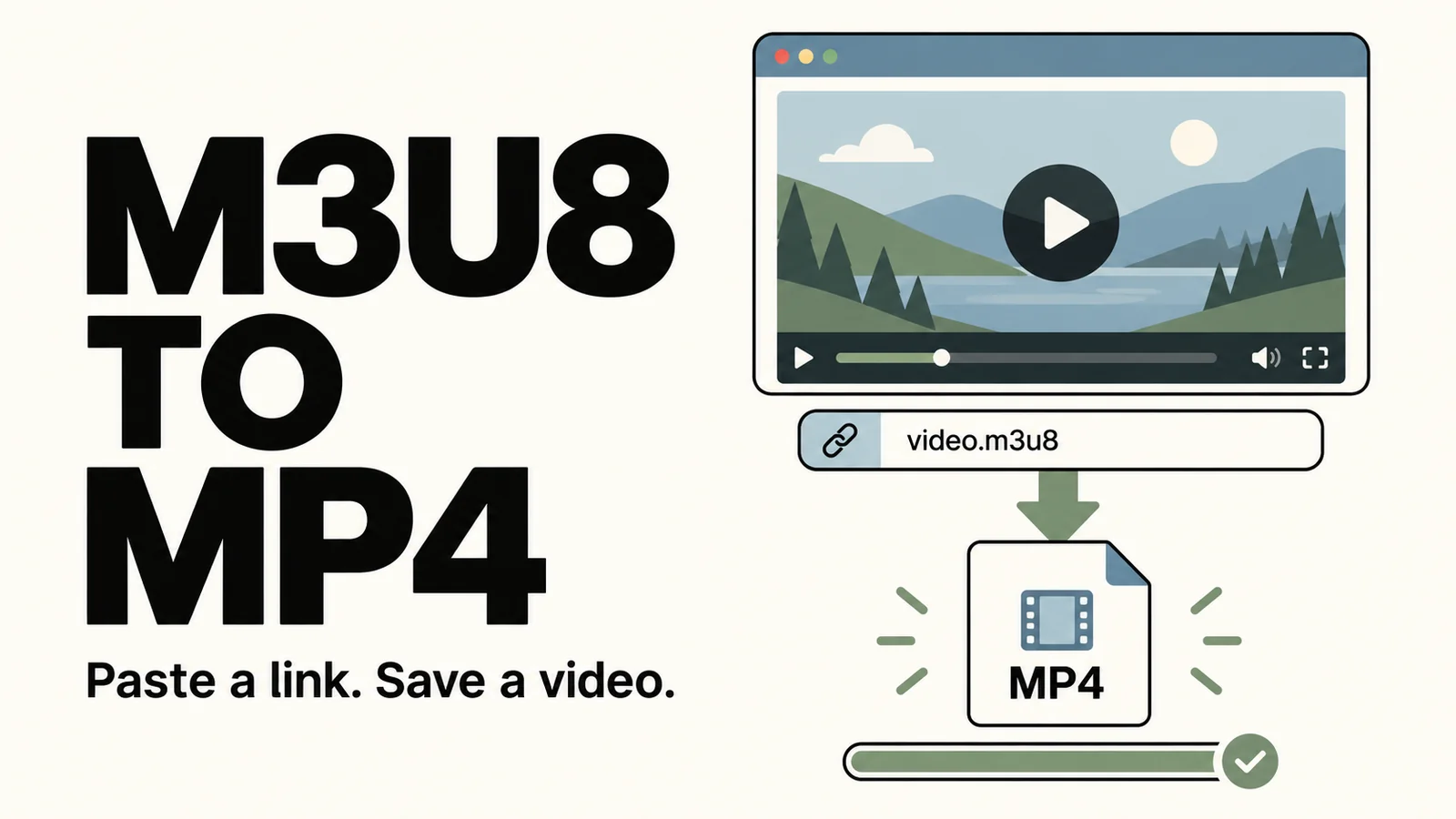
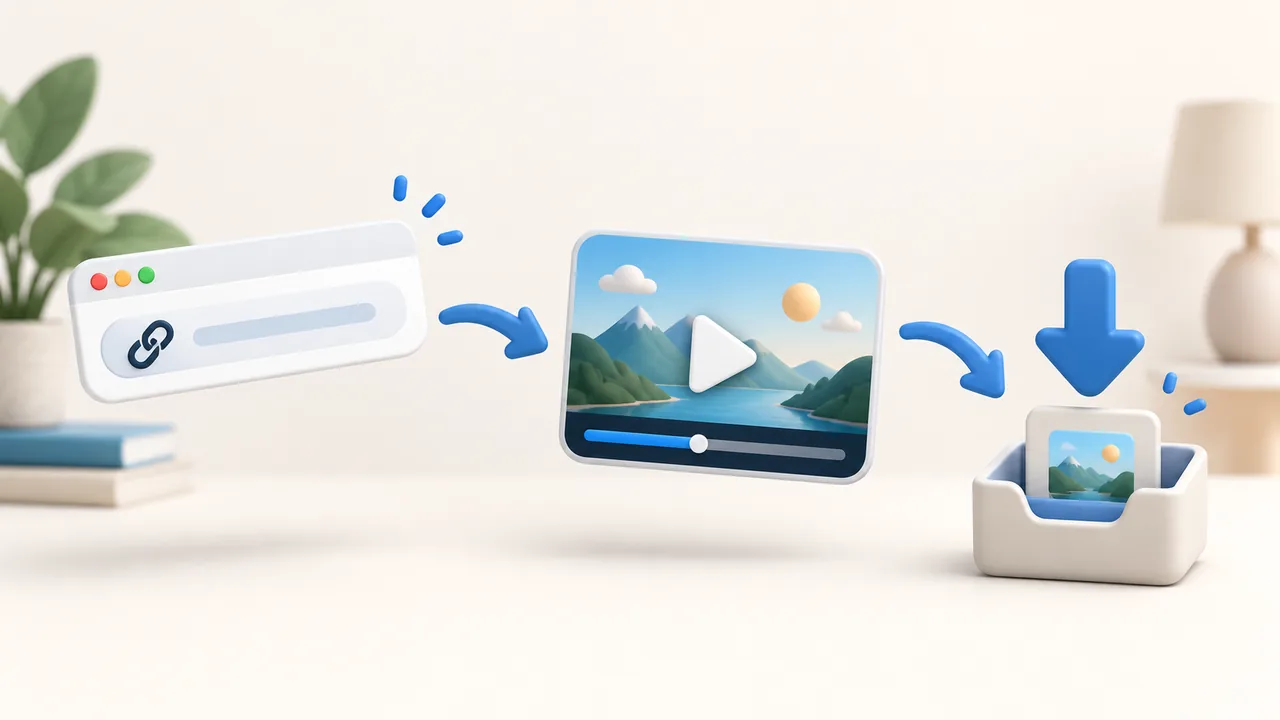
If you come across a video you'd like to save, try URL Mode first. Simply copy the video or share link and paste it into the app to see what downloadable content is available from that link.
How to Use
Copy the link to the video you want to download from a website or another app.
Open URL Video Downloader and select URL Mode.
Paste the link into the input field and tap Parse.
Wait for the results to appear. Check the title, then select the video, audio, or images you want to download. Available options may vary depending on the link.
Tap Download Selected Files, then go to the Downloads page to check the progress.
If the page lists video and audio separately and you want to save a video with sound, select both the desired video and audio tracks, then tap Download and Merge to MP4.
If you're not sure which options to choose, you can tap Auto Select first.
What If No Content Is Found?
First, make sure the link was copied completely.
If the original webpage requires you to log in before viewing the content, go to Login Settings and save your login information for that website, then return and parse the link again.
If you see a message saying that the URL is not supported, try Browser Mode instead. Open the webpage, play the video, and then look for the content you want to download under Media.
Content supported by URL Mode depends on the website and the specific link. Videos that can be played on a webpage may not always be available for direct download.
Comments 0
Comments are disabled for this article.
Loading comments…