LAN File Transfer: How to Send Files Between Your Phone and Computer
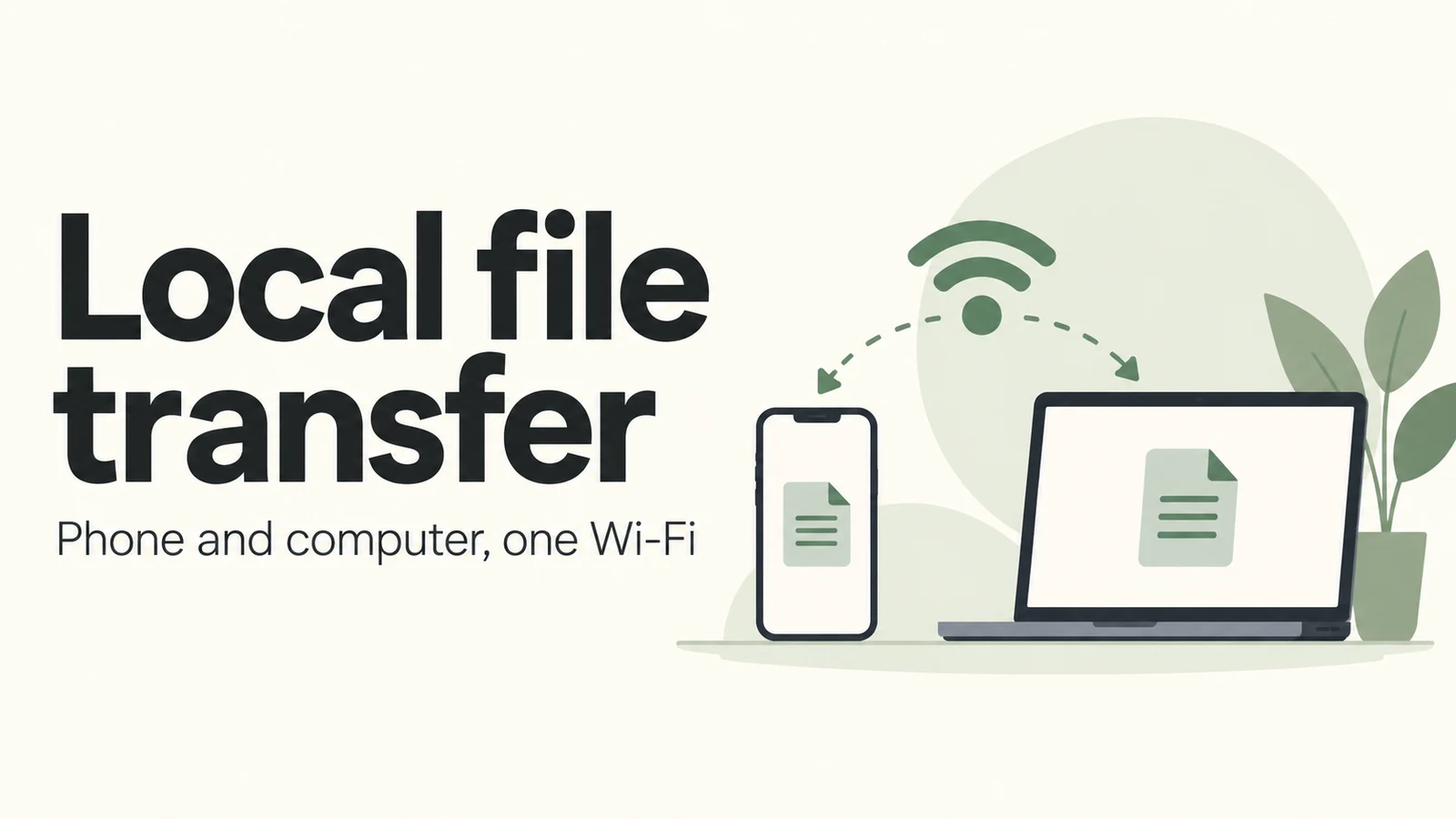
Need to move photos from your phone to your computer, or send a document to someone nearby? LAN File Transfer lets you connect two devices through their browsers and send files directly, without putting them in cloud storage first.
The easiest setup is to connect both devices to the same Wi-Fi. A computer connected by cable to the same router can also work.
Send your first file
Open this site's LAN File Transfer page on both devices.
Give each one a recognizable Device Name, such as “My Phone” and “Work Laptop,” then click Connect.
Once both show Connected, find the receiving device under Nearby Devices on the sender and click Bind.
Click Choose Files, or drag files onto the page. Check the Send Target, then click Send File on the file card. If you add several files, send them individually.
On the receiving device, check the sender and file details, then click Accept.
When the transfer shows Completed, click Download on the receiver to save the file. If you use Stream to disk, follow the browser's save prompt; the finished transfer will show Saved.
Keep both pages open during the transfer. Avoid locking the devices or switching networks, and make sure the file is saved before closing the page.
Send a link or a short note
After binding a device, open Synced Notes and type or paste your text. It will sync to the bound device, where you can click Copy note.
This is handy when you have a link on your computer that you want to open on your phone.
What if the other device doesn't appear?
Check that both devices are connected to the same local network and that you clicked Connect on each page. If your phone is using mobile data, connect it to Wi-Fi first.
If discovery still fails, open the settings in the top-right corner and enter the same Discovery Code on both devices. Save, then disconnect and reconnect each device. The code helps them find each other, but it cannot guarantee a direct connection on a restricted network.
Receiving large files
Choose Stream to disk in the receiving device's settings to save files directly and reduce memory use. If that option is unavailable, use Browser memory. If a large transfer fails, try a small file to check the connection first.
Files travel directly between devices, but the default device discovery service still needs network access. This is not a fully offline tool.
Comments 0
Comments are disabled for this article.
Loading comments…