Browser Mode: Open a Webpage and Find the Video You Want to Save
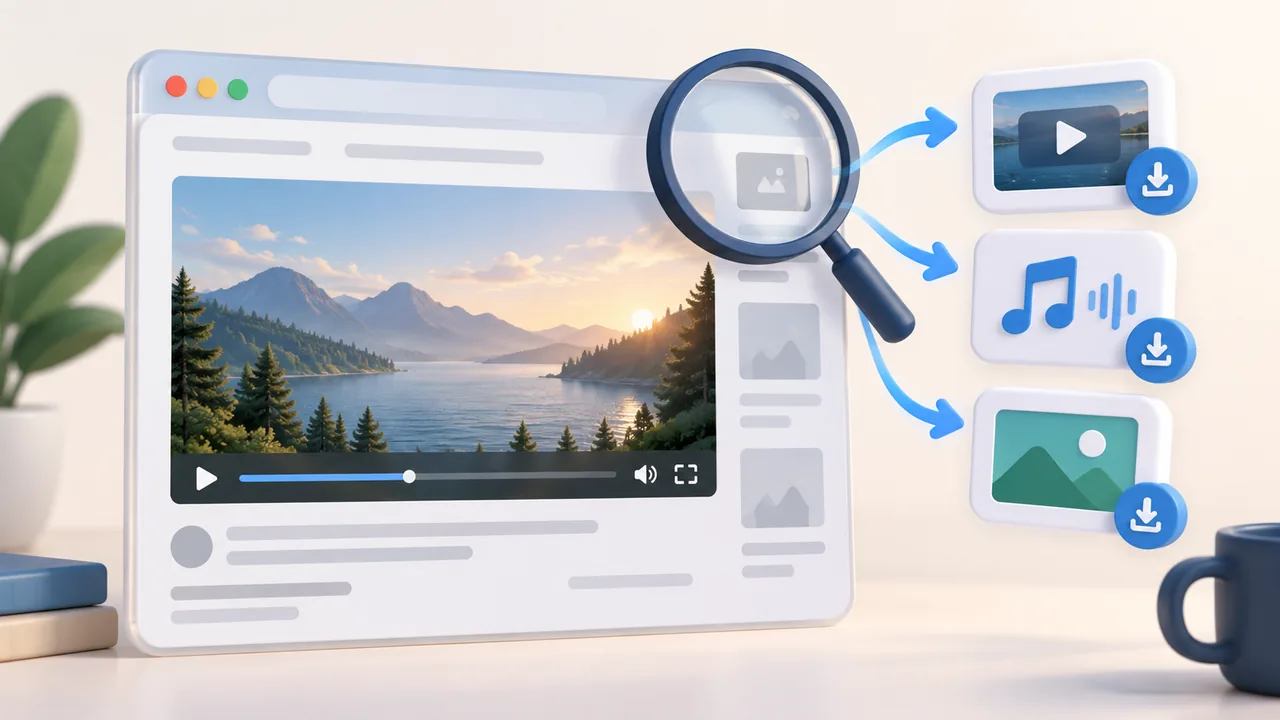
If URL Mode cannot detect content from a webpage, try Browser Mode instead. Browse the webpage and play the video as you normally would. The app will automatically place detected videos, audio, and images in the Media list, where you can preview and download them.
How to Use
Open Browser Mode.
On mobile, enter the website address in the address bar and tap Open. On desktop, click Open Browser, then visit the target webpage in the browser launched by the app.
Find the content you want to save and start playing it. Let the video or audio load for a moment. If the website requires you to sign in, complete the login process on the webpage first.
Return to the app and open Media to look for the content you just played.
You can tap Preview first to make sure it is the correct content, then use the download button to save it. To save multiple items, enter Multi-Select Mode, select the items you want, and tap Download Selected.
On desktop, please use the browser launched by the app to complete these steps.
Can't Find the Content in the List?
Some videos can only be detected after you start playing them. Simply staying on the thumbnail or cover page may not be enough. Return to the webpage and play the content again, or refresh the page and try once more. If media capture has been paused, resume it first.
While browsing, ads, thumbnails, and other webpage assets may also appear in the list. You can filter the list by media type and use the preview feature to identify the content you want.
If the desktop app says that no browser can be found, go to Settings and select the Chrome installation used for Login Settings and Browser Mode, then try opening the browser again.
Comments 0
Comments are disabled for this article.
Loading comments…