Login Settings: Save Your Website Login Session
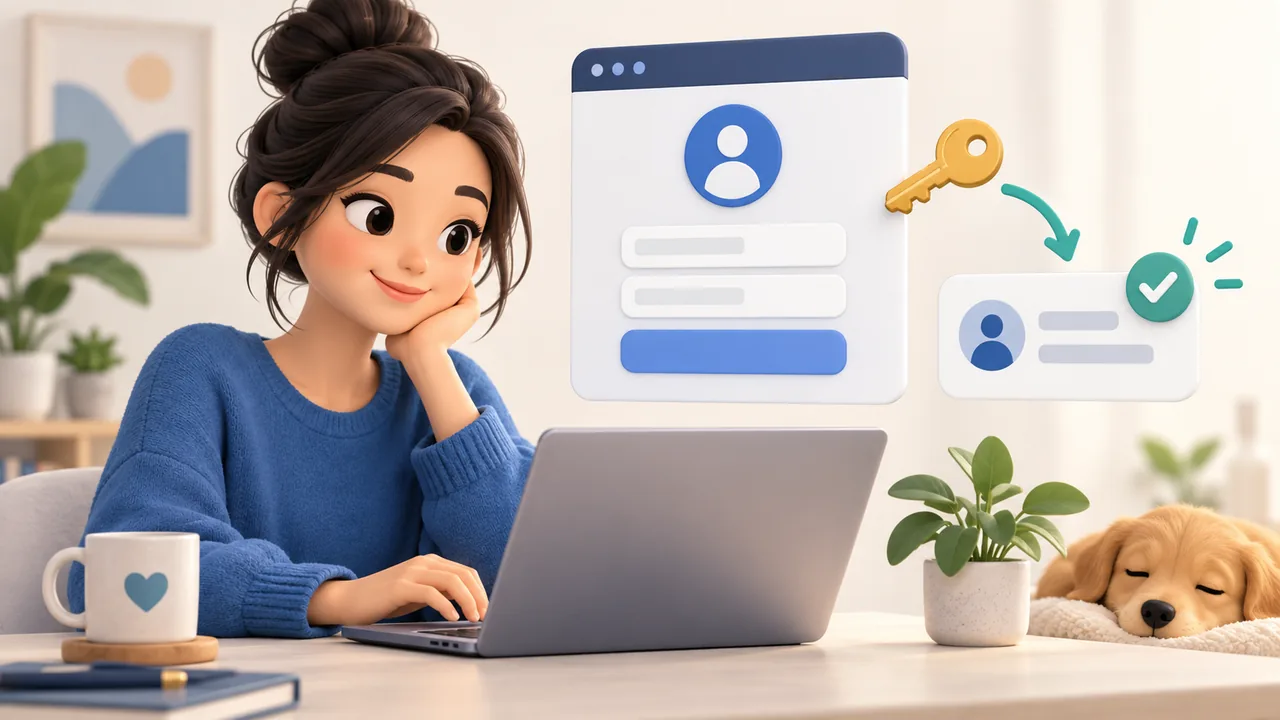
Some content can only be viewed after signing in to a website account. If a download requires you to log in, or the app cannot access a video that is only available to signed-in users, you can first sign in to the website through Login Settings and save your login session.
The account you sign in with should be for the website that hosts the content. For example, if you want to download content from a video website, sign in to your account on that website.
On Desktop
Open Login Settings. You can also access it from Settings.
Enter the address of the website you need to sign in to.
Click (1) - Launch Browser to Sign In.
Complete the sign-in process in the browser that opens, and make sure the webpage shows that you are signed in.
Keep the browser open, return to the app, and click (2) - Get Login Information for This Website.
After the login information is saved successfully, check whether the website appears in the Login Information list below.
On Mobile
Open Login Settings, enter the website address, and tap Login Browser.
Complete the sign-in process on the webpage that opens.
Tap Save Login. After you see a confirmation that it was saved successfully, return to the app.
How to Use Saved Login Information
In most cases, you can leave Auto Use enabled. The app will automatically match saved login information to the corresponding website.
If you want to choose the login information manually, turn off Auto Use, then select the desired entry from the list.
After saving your login session, return to the original download page and parse the link again. If the website asks you to sign in again after some time, simply repeat the login and save process.
Saving your login session does not grant additional access. The content you can access still depends on the permissions of your account on that website.
Comments 0
Comments are disabled for this article.
Loading comments…