Cast Receiver and Sender: Receive Media or Send Content to a Larger Screen

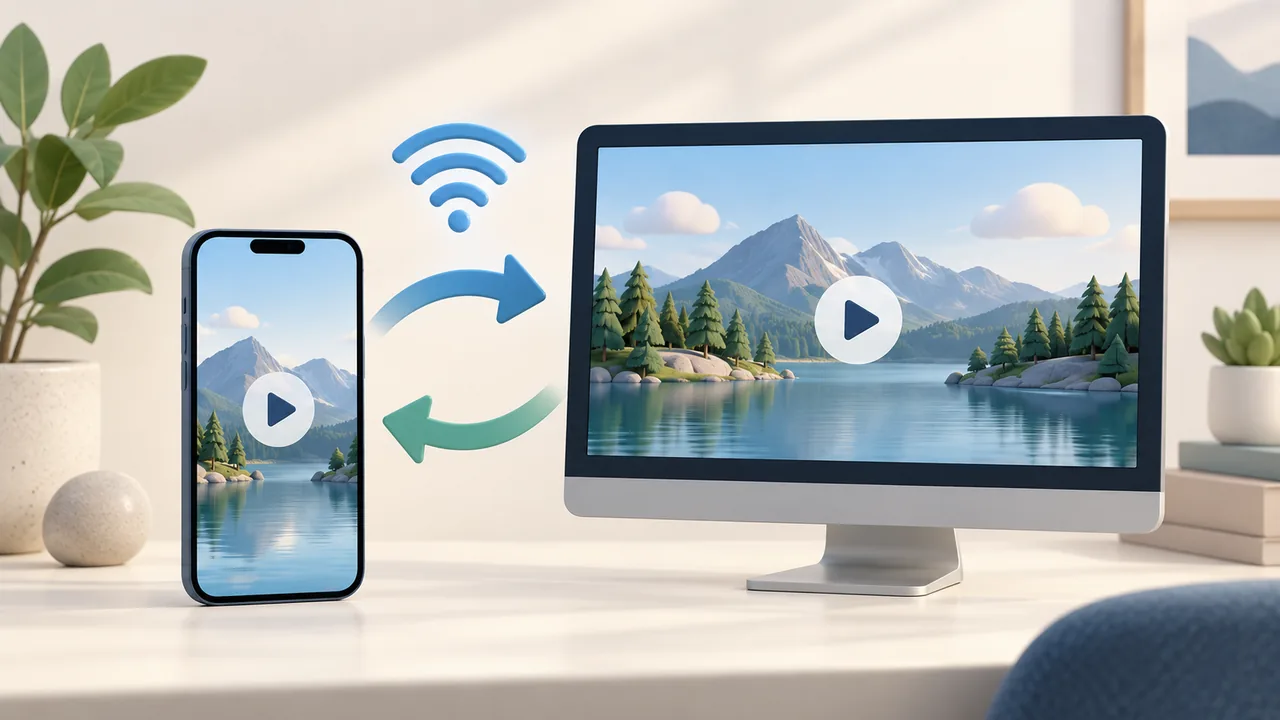
Open Cast - Receive/Send to choose between two modes. Cast Receiver lets you receive media sent from another device, while Cast Sender lets you send media links to a TV or other compatible device.
Before you begin, make sure both devices are connected to the same network. The easiest way is to connect both devices to the same Wi-Fi network. The receiving device can also be connected by Ethernet to the same router. The other device or media player must support DLNA casting.
Receive Content from Another Device
Open Cast Receiver and click Start Service.
Check the device name shown on the page. If you want a name that is easier to recognize, go to Settings, change it, and save.
On another device, open a video or music file and tap the cast button in the player.
Select the device name shown by this app from the device list.
After the media is received, open the app's Media list to find it. You can then preview or download the content.
The receiver collects the media address sent by the other device. After receiving a video, you can open it from Media to preview it.
When you're finished, click Stop Service.
Send Content to a TV or Other Device
Turn on the casting feature on your TV or other receiving device.
In the app, switch to Cast Sender and click Search Devices.
Select the target device from Available Cast Devices.
Paste a video, audio, or image URL into the input field, then click Cast to Selected Device.
After sending the content, you can use Cast Controls to play, pause, or stop playback. The controls actually available depend on the receiving device.
The URL entered here must point directly to the media itself. If you only have a webpage or share link, use URL Mode or Browser Mode first to find the media and obtain its direct URL.
Can't Find a Device or the Media Won't Play?
First, make sure both devices are connected to the same network and that casting is enabled on the receiving device. Then search for devices again.
If macOS asks for permission to access the local network, go to System Settings → Privacy & Security → Local Network and allow this app to access your local network.
If the device can be found but the content does not play, try a different media URL. Some URLs that require authentication, or video formats that are not supported by the receiving device, may not play directly on a TV.
Comments 0
Comments are disabled for this article.
Loading comments…